
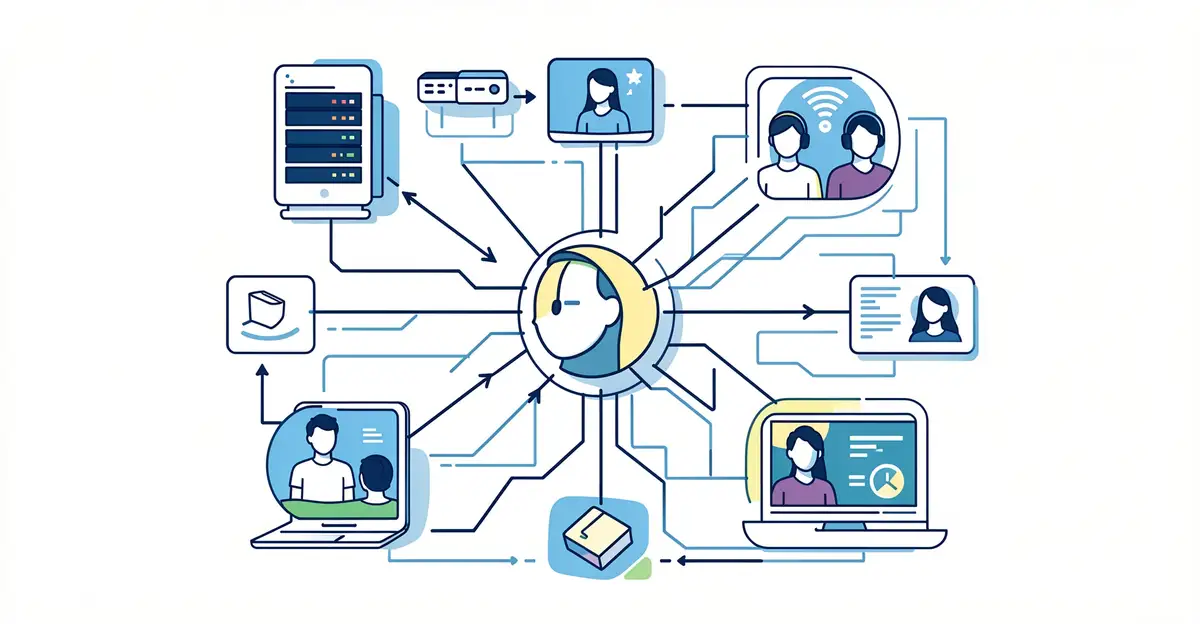
Online video calls feel effortless—tap a button, and you’re face-to-face with someone across the world. But behind that simple interface lies a remarkable chain of technology working in milliseconds to keep voices and faces in sync.
In this article, we break down the technology behind online video calls in plain language. You’ll learn how your camera, microphone, and network team up to deliver smooth conversations—and what you can do to improve call quality on your end.
Introduction
Online video calls have become a routine part of work, education, healthcare, and staying in touch with family. What looks simple on the surface—two or more people seeing and hearing each other in real time—depends on a remarkably complex chain of technologies working together in fractions of a second. This article explores the technology behind online video calls with clear, practical guidance, so you can understand what happens when you click “Join Meeting” and make better choices about the tools, networks, and habits that shape your experience.
Many people assume video quality is mostly about having a good camera. In reality, the camera is only the beginning. Your device captures audio and video, compresses it, sends it across the internet, and then another device reverses the process—all while trying to keep delays invisible. Understanding the fundamentals helps you make informed decisions, whether you are choosing a platform for a business, troubleshooting a choppy call, or simply trying to look and sound more professional. Reliable information and consistent habits lead to better long-term outcomes, both for the quality of your calls and for how confidently you use these tools.
This guide is written for general readers who want plain-language explanations rather than engineering jargon. We will cover the key concepts, take a deep dive into how the pieces fit together, walk through a practical step-by-step approach, and finish with best practices and frequently asked questions. By the end, you should be able to diagnose common problems and set up your environment for consistently better calls.
Key Concepts
To understand video calling, it helps to start with a handful of core ideas. Each one explains a different part of the experience, and most call problems can be traced back to one of them.
Capture and Playback
Every video call begins with sensors and ends with screens. A camera converts light into digital frames, usually 15 to 60 per second. A microphone converts sound waves into digital audio samples, typically 8,000 to 48,000 times per second. On the receiving end, the process reverses: speakers turn digital audio back into sound, and a display renders video frames. The quality of your camera and microphone matters, but so does lighting and room acoustics—often more than the hardware itself.

Compression and Codecs
Raw video is enormous. A single minute of uncompressed high-definition video can exceed a gigabyte, which is far too much data to send over a typical internet connection. That is why codecs exist. A codec (short for coder-decoder) compresses video and audio by removing information the human eye and ear are unlikely to notice. Common video codecs include H.264, H.265 (HEVC), VP9, and AV1. Audio codecs include Opus and AAC. Compression is lossy, meaning some detail is discarded, but well-designed codecs produce images that look nearly identical to the original at a fraction of the size.
Bandwidth, Latency, and Jitter
Bandwidth is the amount of data your connection can carry per second, often measured in megabits per second (Mbps). Latency is the delay between sending and receiving data, measured in milliseconds. Jitter is the variation in that delay. Some calls need more bandwidth (high-definition group calls), while others are more sensitive to latency (real-time conversation). Jitter is especially disruptive because it makes audio and video arrive unevenly, causing stutter and robotic-sounding speech.
Protocols and Transport
Video calls rely on a family of protocols. WebRTC is the most common for browser-based calling and handles capture, encoding, and peer-to-peer connections. SIP and H.323 are older standards still used in some enterprise phone systems. Underneath, most real-time communication uses UDP rather than TCP, because UDP favors speed over guaranteed delivery—perfect for live conversation, where a late packet is worse than a lost one.
Architectures: Peer-to-Peer and Server-Based
In a two-person call, data can travel directly between devices, an approach called peer-to-peer. This reduces latency and server costs. For larger meetings, a central server (often a Selective Forwarding Unit, or SFU) receives each participant’s stream and forwards it to others. This uses more server resources but scales far better and keeps bandwidth manageable for each participant.
Deep Dive
Now let’s examine what actually happens during a call, from the moment you speak to the moment your voice reaches someone else.
The Journey of a Video Frame
Your camera captures a frame. The codec compresses it, often by comparing it with previous frames and encoding only what changed—a technique called inter-frame prediction. The compressed frame is packetized, meaning it is split into small chunks, and sent over the network. On arrival, the receiver reassembles the packets, decodes the frame, and displays it. If a packet is lost, the decoder may repeat the previous frame or apply error concealment, which is why brief glitches look like frozen or smeared patches.
Echo Cancellation and Noise Suppression
If you have ever heard your own voice come back a second later, you have experienced echo. Modern software uses acoustic echo cancellation (AEC) to detect what your speakers are playing and subtract it from what your microphone hears. Noise suppression goes further, using algorithms to identify and reduce background sounds like keyboards, fans, or traffic. These features are computationally intensive but run in real time on most modern devices.
Adaptive Bitrate and Quality Management
Networks fluctuate. To cope, video calling apps continuously monitor conditions and adjust. If bandwidth drops, they lower resolution, frame rate, or both. If latency spikes, they may increase buffering slightly to smooth playback. This dynamic process is called adaptive bitrate control, and it is why your video sometimes looks sharp and sometimes looks soft within the same call—without you changing anything.
Security and Encryption
Most reputable platforms encrypt calls end-to-end or in transit using protocols like DTLS and SRTP. End-to-end encryption means only the participants can decode the media, while in-transit encryption protects data between each participant and the server. Understanding the difference matters if you discuss sensitive information. Check your platform’s documentation to know which model it uses.
Hardware Acceleration
Encoding and decoding video are demanding tasks. Many devices include dedicated hardware for this, such as Intel Quick Sync, NVIDIA NVENC, or Apple’s VideoToolbox. When available, these offload work from the main processor, improving battery life and call stability. If your calls stutter while your device feels hot, hardware acceleration may be disabled or unsupported in your app.
Best Practices
Good calls are rarely an accident. They come from a few consistent habits and sensible setup choices.
- Test before important calls. Join a test meeting or use your platform’s device check to confirm camera, microphone, and speakers work.
- Prioritize audio over video. Viewers forgive soft video far more easily than choppy or echoing audio. A decent headset often improves call quality more than a better webcam.
- Use a wired connection when possible. Ethernet is more stable than Wi-Fi, and Wi-Fi is more stable than mobile data. If you must use wireless, stay close to the router.
- Close bandwidth-hungry apps. File downloads, cloud backups, and streaming video compete with your call for bandwidth.
- Light your face, not your background. Place a light source in front of you rather than behind you to avoid silhouettes.
- Mute when not speaking. This reduces background noise and frees bandwidth for others.
- Keep software updated. Updates often include codec improvements, security patches, and performance fixes.
- Respect privacy. Use blurred or virtual backgrounds when appropriate, and be mindful of what is visible and audible in your space.
Reliable information and consistent habits lead to better long-term outcomes. A few minutes of preparation before a call can prevent most of the frustration people associate with video meetings.
Step-by-Step Guide
The following steps apply whether you are setting up video calling for personal use or improving an existing workflow.

Step 1: Understand the fundamentals
Start by learning the basic concepts covered earlier: capture, compression, bandwidth, latency, and architecture. You do not need to become an engineer, but knowing that audio and video are compressed separately, that latency matters more than raw speed for conversation, and that peer-to-peer differs from server-based calling will help you interpret problems correctly. Write down the terms that seem most relevant to your situation and look up any you do not understand.

Step 2: Assess your starting point
Before changing anything, measure what you have. Check your internet speed using a reputable test, noting both download and upload rates, since video calls depend on upload as much as download. Test your camera and microphone in your chosen app. Note the device you use, its operating system, and whether it supports hardware acceleration. If you have recurring problems, record when they happen and what the call looked like—frozen, blurry, echoing, or dropped. This baseline makes it easier to see whether your changes help.

Step 3: Set clear goals
Decide what “good” means for your use case. A one-on-one therapy session has different priorities than a large team standup or a virtual family dinner. Goals might include stable audio, consistent 720p video, minimal setup time, or strong privacy. Write them down in plain language. Clear goals keep you from over-investing in equipment you do not need and help you judge success objectively.

Step 4: Gather necessary resources
Based on your goals, collect what you need. This may include a headset or external microphone, a webcam or better lighting, a stable internet plan, an updated device, and a chosen platform. It also includes non-physical resources: a quiet room, a reliable power source, and a backup plan such as a phone number or alternate app if the primary one fails. For business use, confirm that your platform meets any privacy or compliance requirements.

Step 5: Apply the core methods
Now put the best practices into action. Connect via Ethernet if possible. Position your light source in front of you. Use a headset to reduce echo. Close unnecessary apps. Enable hardware acceleration in your app settings if available. Run a test call and adjust until audio is clear and video is smooth. If quality is still poor, change one variable at a time—switch from Wi-Fi to wired, lower the video resolution, or try a different codec setting—so you know what actually helped.

Step 6: Monitor your progress
You now have a solid foundation for The Technology Behind Online Video Calls. Apply the best practices above and revisit this guide as your needs evolve.